The Missing Operating System
A user reported that their Mac laptop was not working — unable to turn on or reach the main screen. The Mac was older, had been unresponsive and slow, and had recently lost any real functionality.
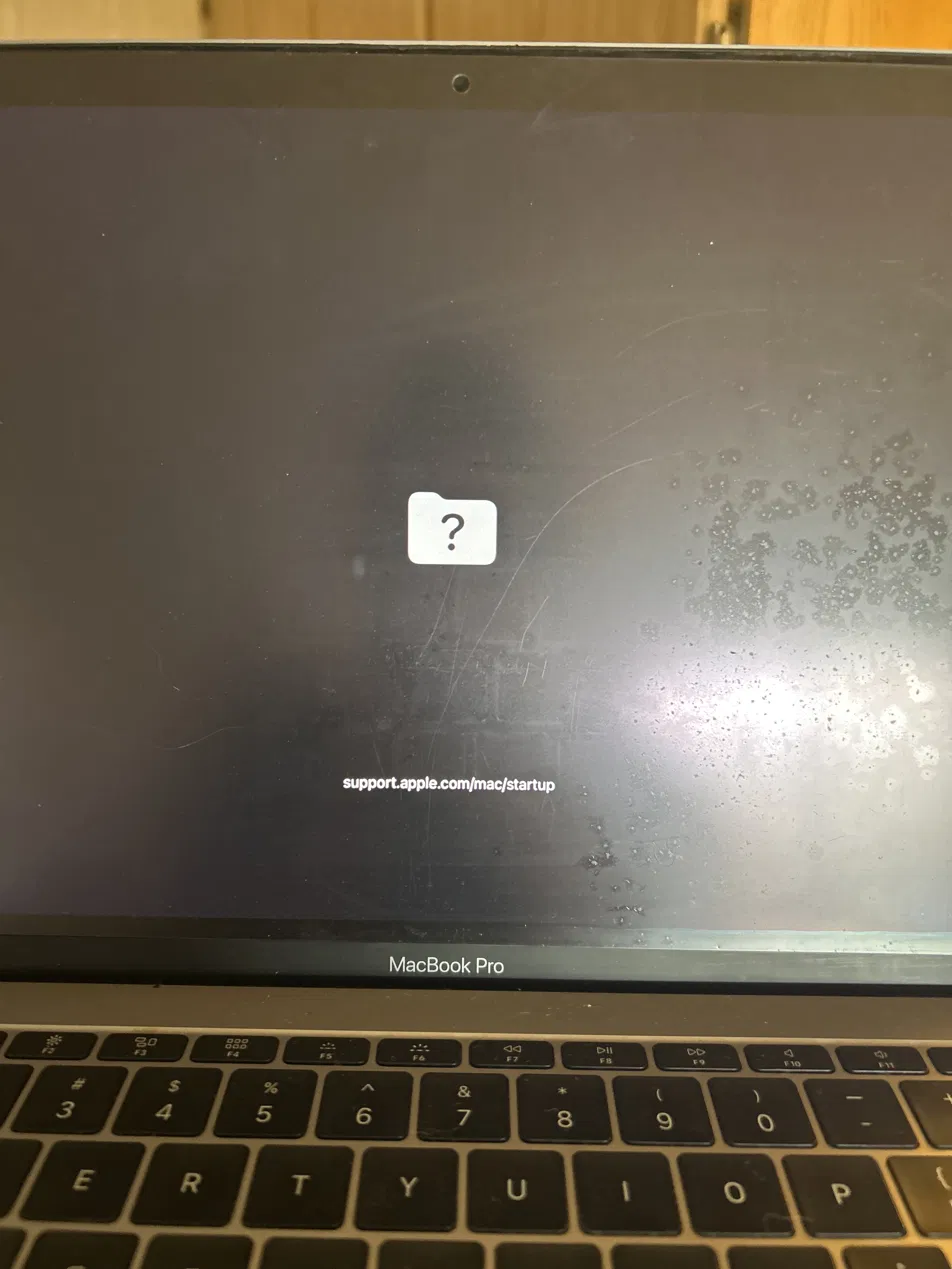
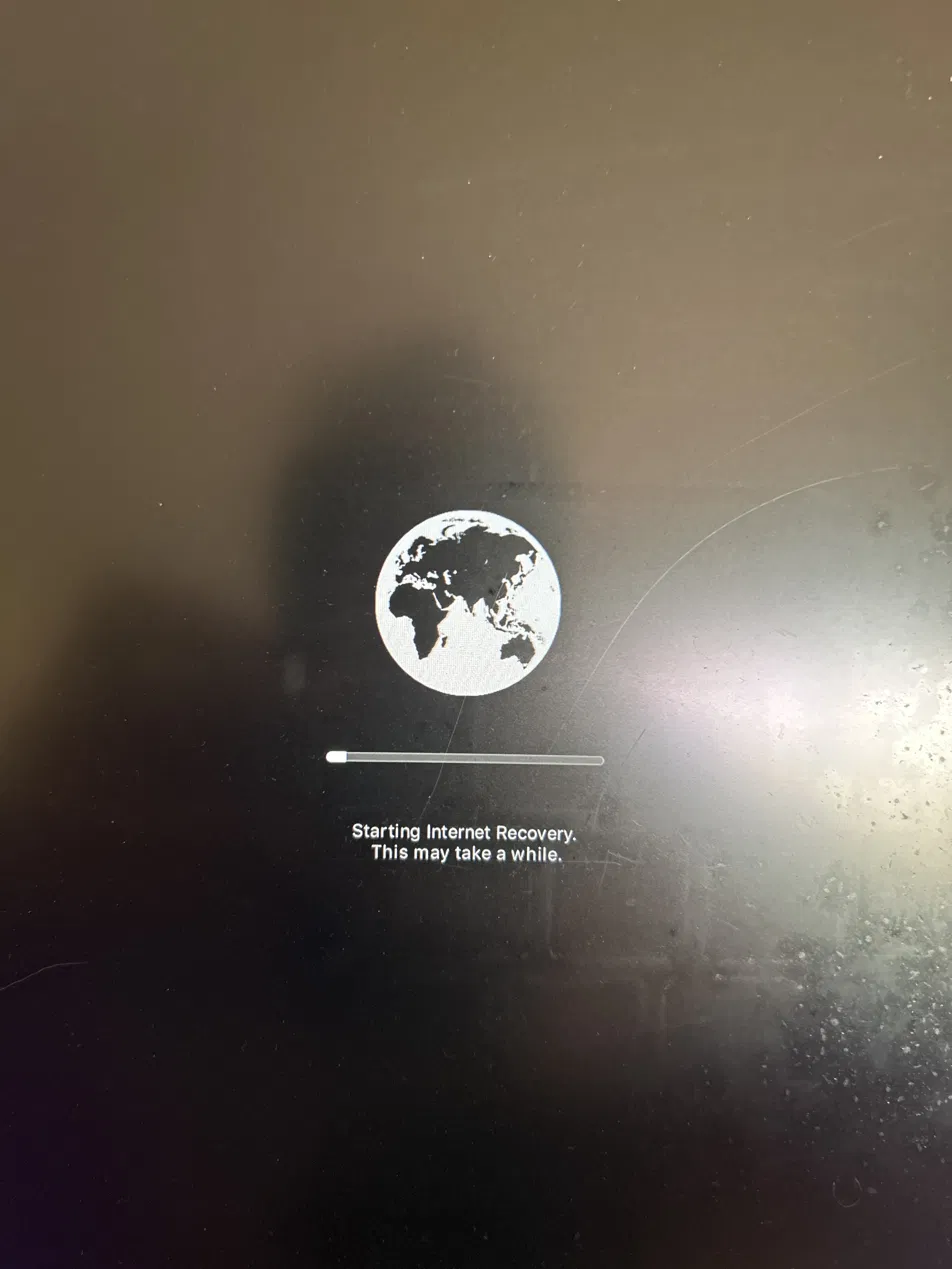
Upon turning on the computer I found a flashing folder with a question mark, which indicated the computer could no longer find a valid startup disk. I restarted and held Command + R to trigger Recovery mode. Because local Recovery files were missing, the Mac automatically fell back into Internet Recovery — downloading a recovery system directly from Apple's servers over Wi-Fi.
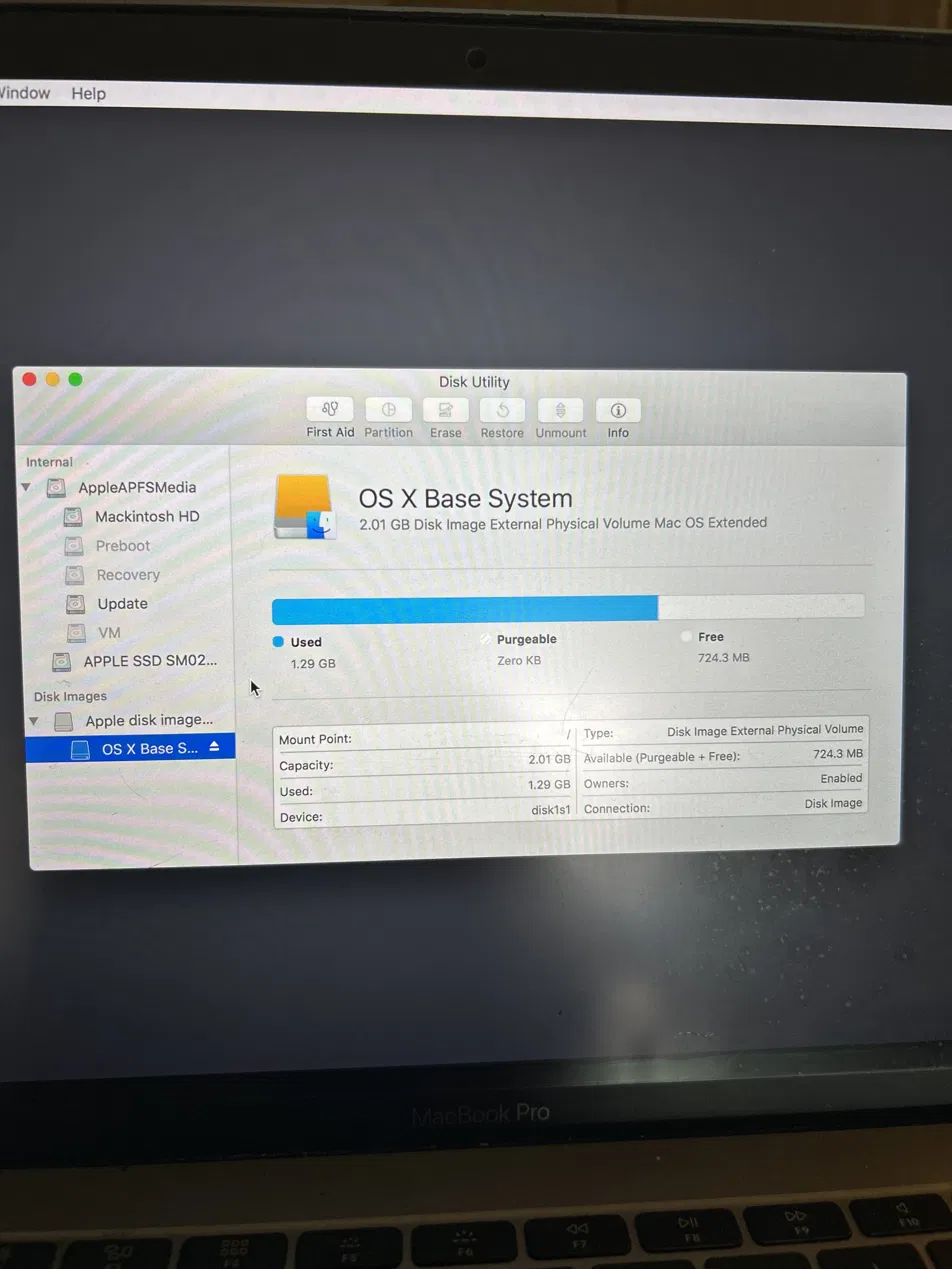
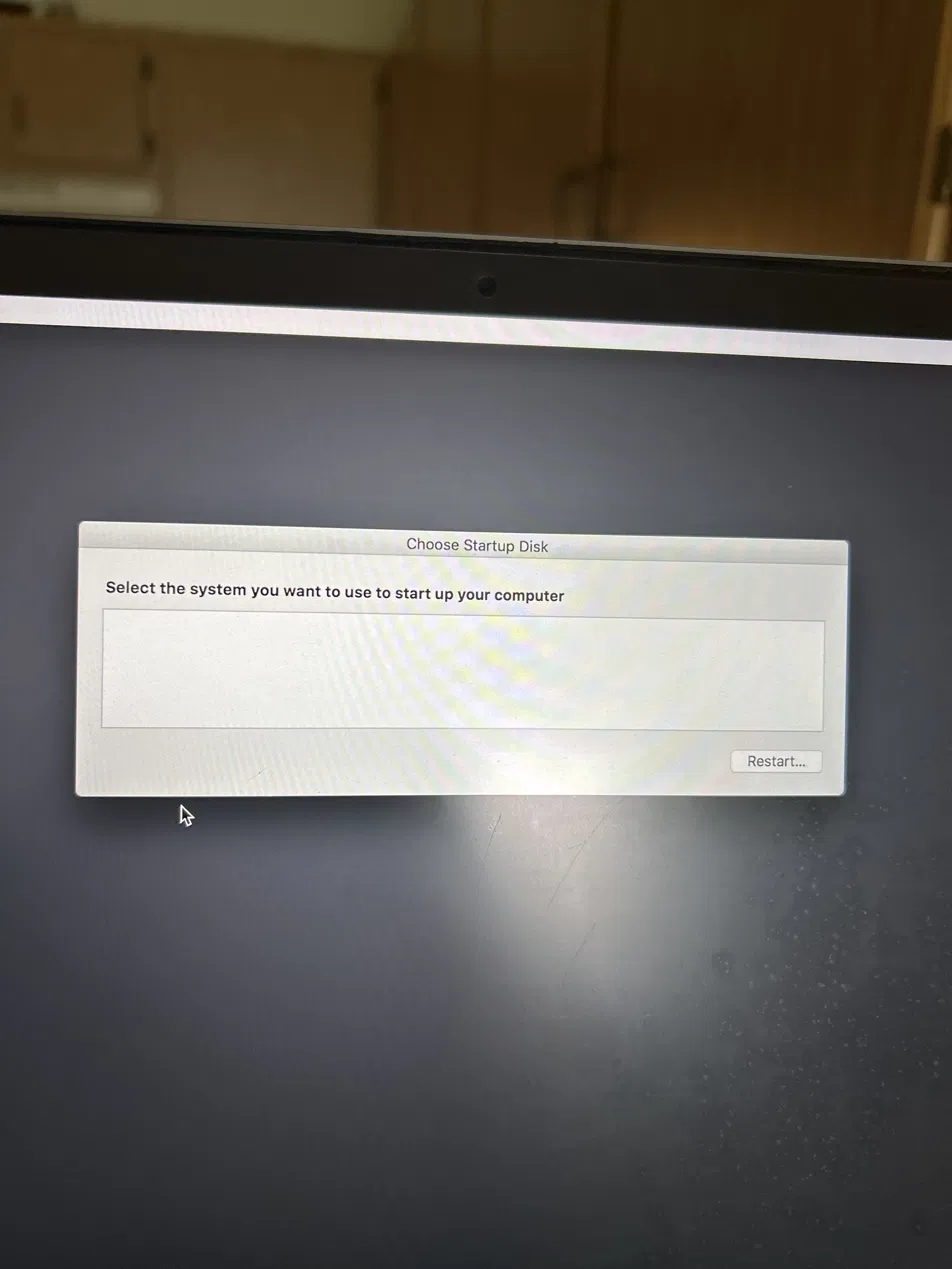
Once inside Disk Utility, I found the SSD was intact. The presence of Macintosh HD, Preboot, and Recovery volumes confirmed the macOS file structure was still in place. I ran First Aid on both Macintosh HD and AppleAPFSMedia — both passed. However, when I went to choose a startup disk, the list was completely empty. The computer could not see a bootable system, meaning a reinstall was necessary. The user confirmed the machine had been wiped of personal files prior to the failure.
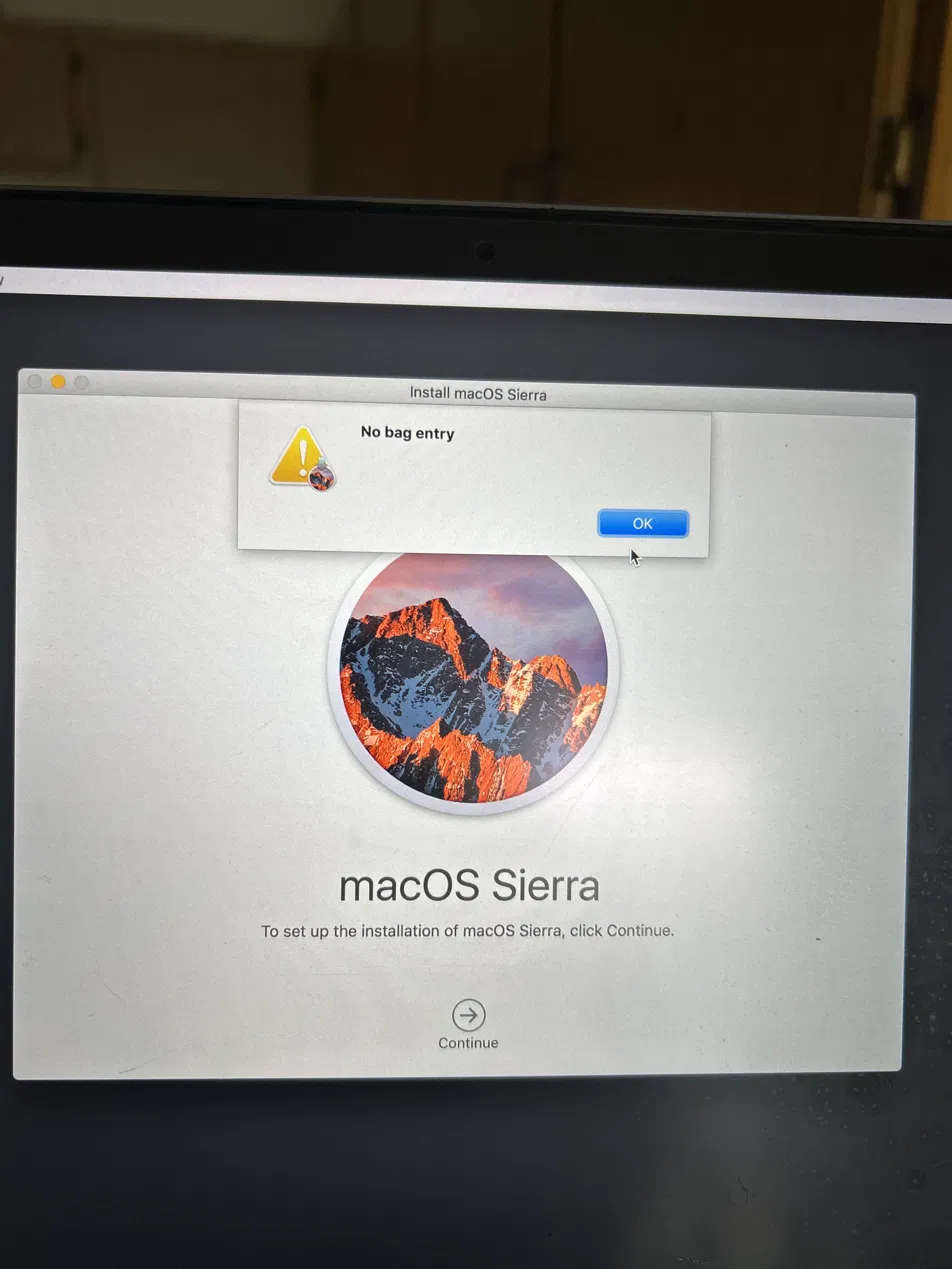
Back in the Utilities menu I selected Reinstall macOS, but an error occurred immediately. I opened Terminal to check the system date and found it read 010714392024 — January 7, 2024. A Mac's system clock must be accurate for Apple's servers to validate software installs. I corrected the date and restarted.
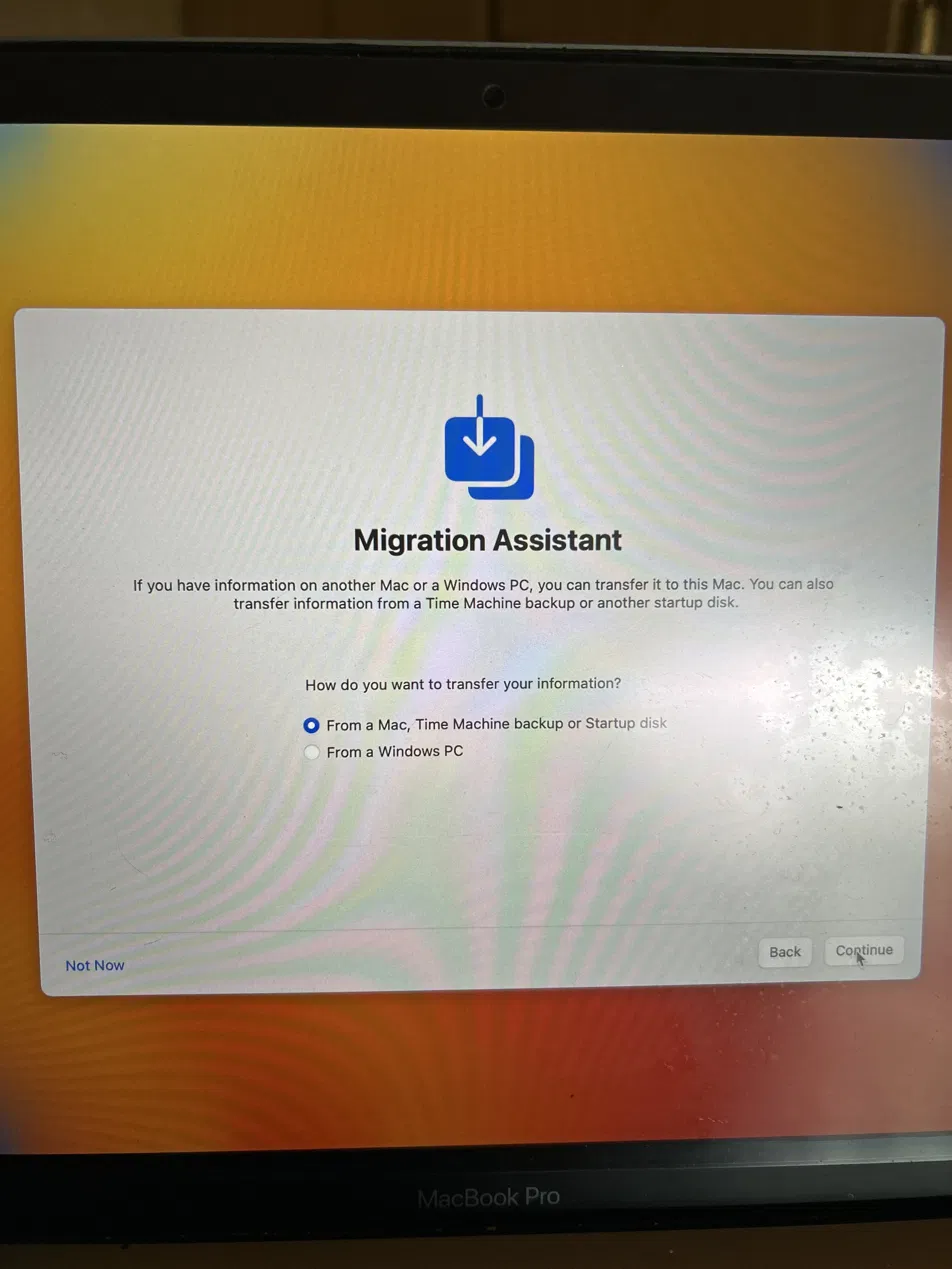
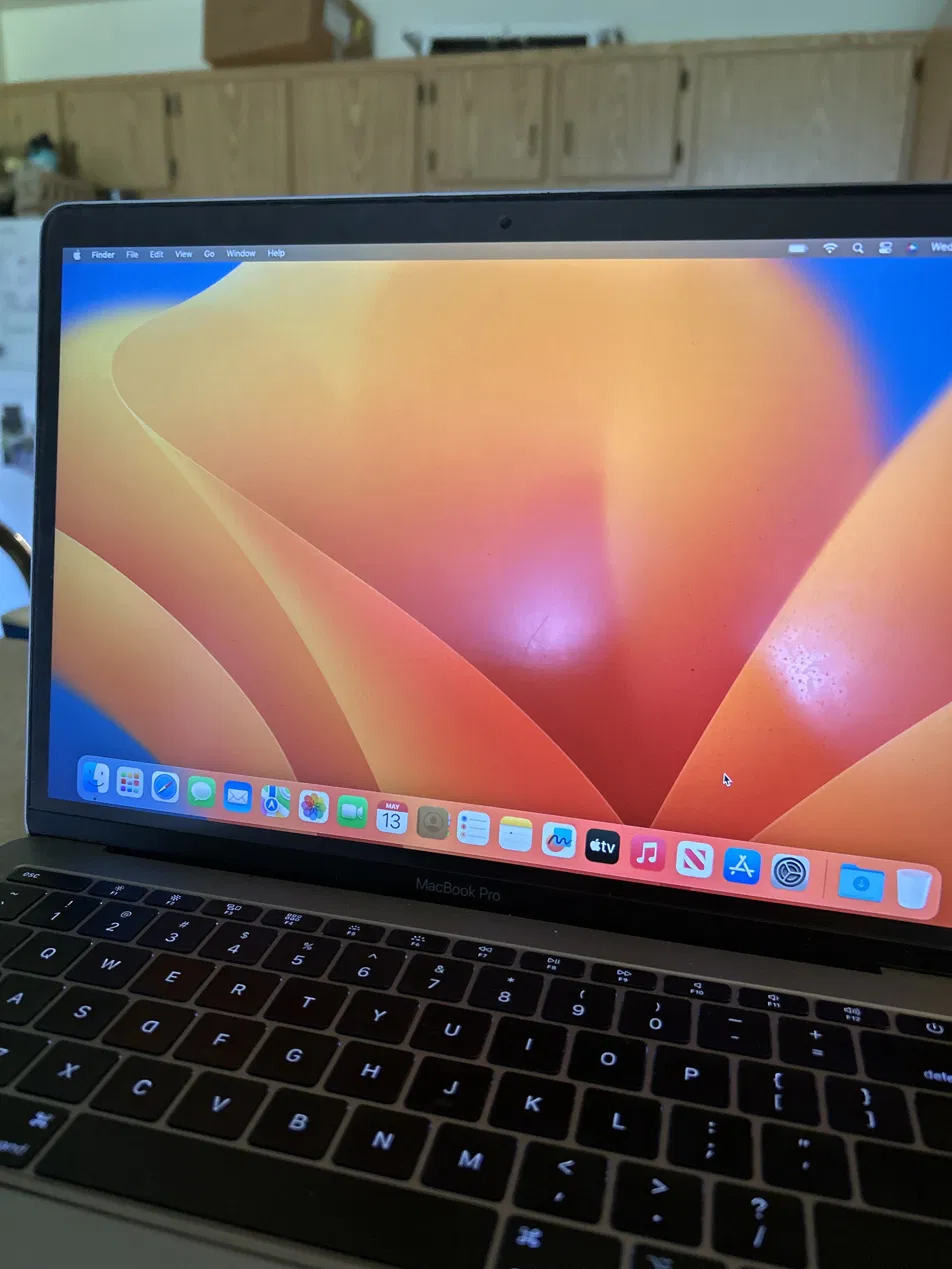
After restarting, the Mac skipped Recovery entirely and booted directly into the Migration Assistant screen — the first step of a freshly installed system. The macOS reinstall had completed successfully in the background once the date was corrected.
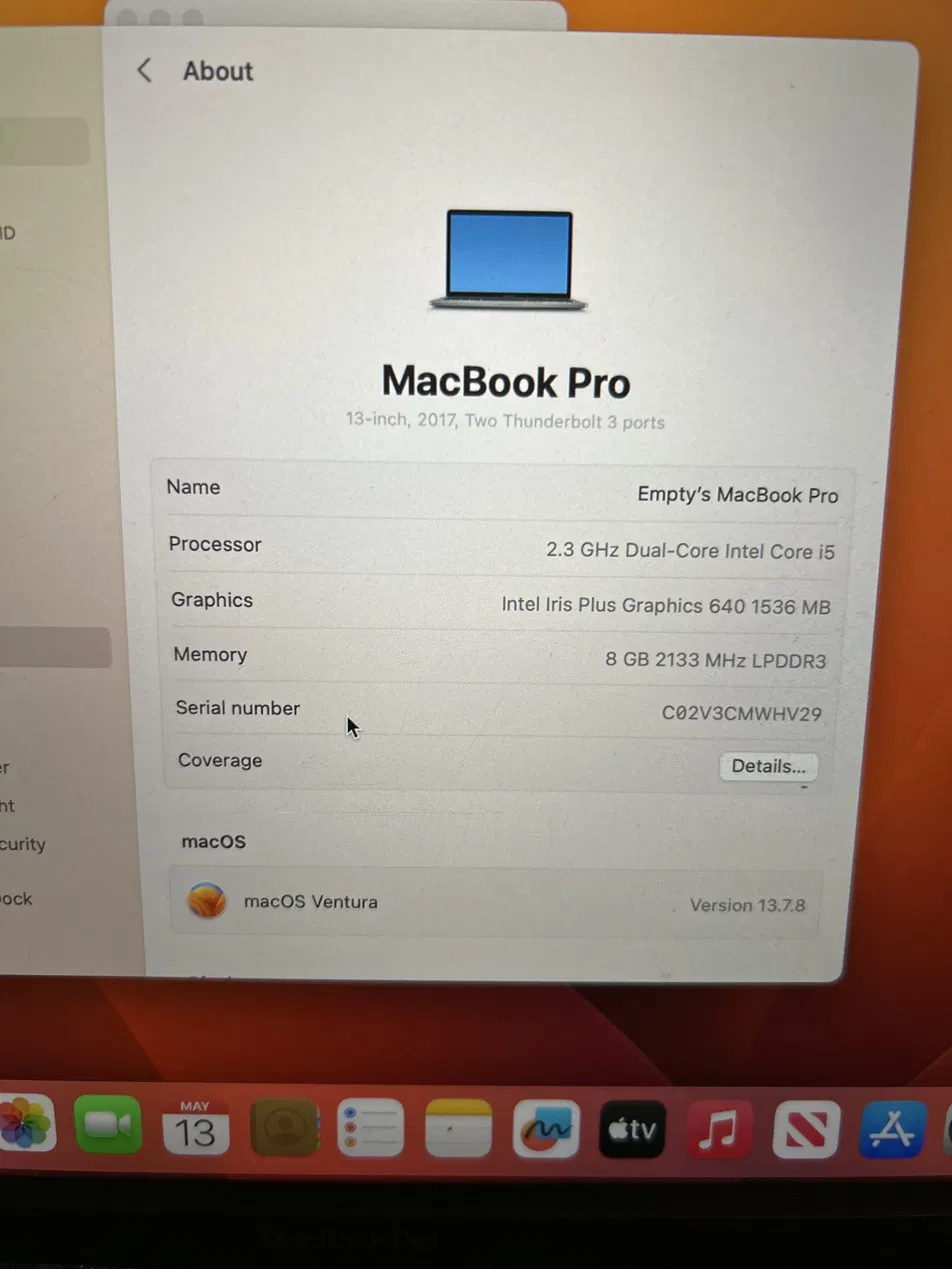
After setup I checked About This Mac: MacBook Pro 13-inch, 2017, dual-core Intel i5, 8GB of soldered RAM that cannot be upgraded. The machine was running macOS Ventura 13.7.8 — the newest OS this hardware supports. Ventura still receives security updates for now, but its support window is limited.
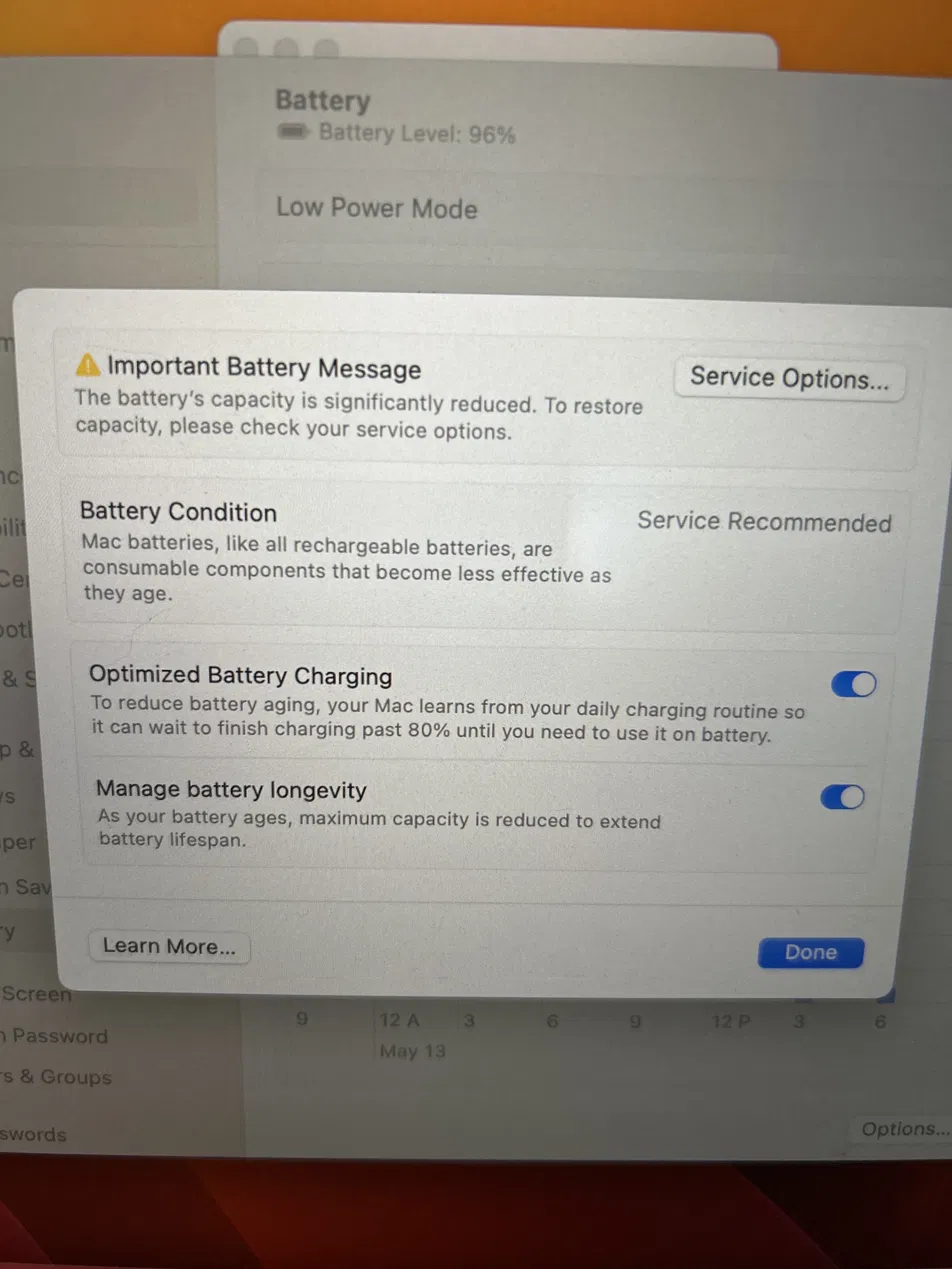
A battery check revealed "Service Recommended" status, meaning Apple recommends replacement. The Manage Battery Longevity setting was enabled, which macOS uses automatically to slow further wear — but a degraded battery causes macOS to throttle CPU performance, making the device feel slower and less responsive than its specs suggest.
The Options
Option 1 — Battery Replacement
Approximately $200 out of warranty. A new battery restores responsiveness and removes CPU throttling, but the OS remains near end-of-life. Not a long-term solution.
Option 2 — Device Replacement (Recommended)
Apple's trade-in program may return $45–$100 for this machine toward a new MacBook starting around $800. New Macs offer significantly better performance, modern OS support, and Apple Silicon efficiency. Most likely the best long-term value.
Outcome
macOS Ventura successfully reinstalled. The root cause — an incorrect system date blocking Apple's authentication — was identified and resolved. The user was given a fully working machine along with an honest assessment of its limitations and two clear paths forward.
Need help with a tech problem?
Let's figure it out together.